

Setting up eBay Business Policies correctly is one of the easiest ways to improve your efficiency, boost conversions, and create consistent buyer experiences in 2025. Yet many sellers still overlook how powerful these policies really are. Whether you’re listing a few items a week or managing a large eBay store, your payment, shipping, and return settings directly affect visibility, sales, and buyer trust.

eBay continues to update how policies work—especially with improvements to shipping options, payment automation, and buyer expectations. That means sellers need to review and optimize their setups for 2025, not rely on outdated configurations. When your eBay business policy templates are organized, accurate, and aligned with your store strategy, you streamline listing creation and present a more trustworthy, professional store.

This guide explains everything eBay sellers need to know about business policies in 2025—how they work, how to set them up, which policies matter most, and the best configurations for different selling styles. If you’re looking for which business policies eBay recommends this year or simply want a step-by-step setup guide, you’ll find all the answers below.

Account suspended? Don’t panic. Follow our expert advice in this blog on how to recover a suspended eBay account and get back in business.

What Are eBay Business Policies?

eBay Business Policies are preset templates that control the three most important parts of every listing: payment, shipping, and returns. Instead of manually setting these options every time you create or revise a listing, you can save them as reusable policies. This allows sellers to stay consistent, save time, and avoid errors across hundreds or even thousands of listings.

At the core, each eBay business policy falls into one of three categories:

Payment Policy

Defines how buyers pay you.
Includes:

  • accepted payment methods

  • immediate payment requirements

  • any special instructions

Shipping Policy

Specifies how and when you ship items.
Includes:

  • domestic and international services

  • handling time

  • carrier choices

  • free vs paid shipping options

Return Policy

Explains what buyers can expect if they need to return an item.
Includes:

  • return window (30, 60 days, etc.)

  • who pays return shipping

  • restocking fees (if applicable)

Why eBay Business Policies Matter in 2025

In 2025, eBay tightened its focus on consistency, transparency, and buyer satisfaction. Listings with clear, accurate policies are favored in search results because they reduce friction during checkout. Using business policies provides sellers with:

  • faster listing creation

  • fewer errors and mismatched settings

  • more consistent buyer messaging

  • better compliance with eBay seller standards

  • higher conversion rates on mobile and desktop

Whether you’re a new seller or a high-volume store, understanding and optimizing your policies is essential for long-term success.

Need to cancel a bid? Learn exactly how to do it in our latest guide on eBay bid retraction and cancellation.

Benefits of Using eBay Business Policies in 2025

Setting up your eBay Business Policies correctly gives you a major competitive advantage in 2025. eBay’s search algorithm rewards listings that offer clear shipping, simple returns, and consistent buyer experiences. When your policies are optimized, every new listing becomes faster, cleaner, and more aligned with what buyers expect.

Below are the most important benefits for all sellers.

Faster Listing Creation

Using saved eBay business policy templates eliminates repetitive manual work.

Seller advantages:

  • Create listings in seconds

  • Apply accurate settings automatically

  • Reduce mistakes in shipping or returns

  • Maintain consistency across all products

This helps both casual sellers and large stores scale their operations efficiently.

Better Search Visibility

eBay prioritizes listings with transparent, buyer-friendly policies.

Improved visibility comes from:

  • offering fast handling times

  • providing clear return options

  • using modern shipping methods

  • matching buyer expectations

Optimized business policies encourage higher click-through rates and stronger placement in search results.

Higher Conversion Rates

Buyers make decisions quickly, especially on mobile. Clean policies help them trust your store.

Conversions increase when:

  • returns are simple

  • shipping times are accurate

  • payment options are straightforward

Clear policies reduce hesitation and build buyer confidence, leading to more completed purchases.

Fewer Buyer Questions and Disputes

When your eBay business policies clearly explain shipping, payment, and returns, buyers don’t need to guess.

This reduces:

  • “Where is my item?” messages

  • complaints about return windows

  • confusion about shipping costs

  • PayPal/credit card disputes

Less friction = better performance metrics.

Easy Bulk Management

Sellers with multiple categories or niches benefit from structured policy templates.

Bulk-management perks:

  • change hundreds of listings at once

  • update shipping carriers instantly

  • revise return rules storewide

  • avoid mismatched or outdated settings

This is especially important in 2025, as eBay continues pushing sellers toward policy consistency.

Future-Proofing Your Store

eBay updates its rules every year. With proper eBay business policy templates in place, adapting becomes simple.

You can:

  • adjust handling time during peak seasons

  • swap in updated carrier services

  • modify payment rules globally

  • adapt return rules to new seller standards

This keeps your store compliant, optimized, and competitive.

Facing negative reviews? Our actionable guide on how to remove negative feedback on eBay can help you maintain your seller rating.

How to Set Up eBay Business Policies

Whether you’re new to eBay or updating your setup for 2025, this guide walks you through how to create ebay business policies from scratch, including payment, shipping, and return policies — the three templates every seller needs.

Opt Into Business Policies (First Step)
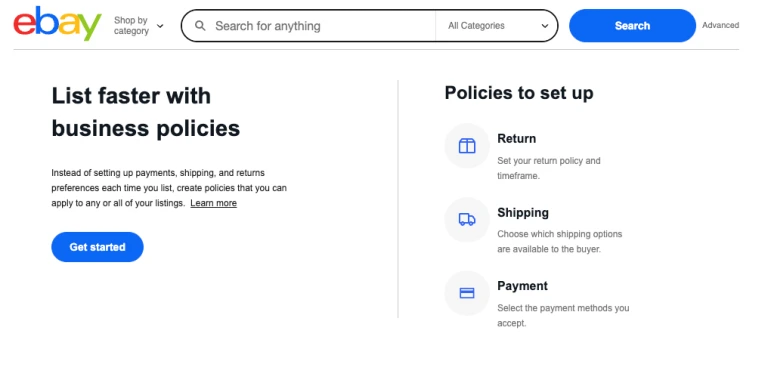
getting started with ebay business policies

Before you can create or use any business policy, you must opt into the Business Policies feature in your eBay account.

Steps:

  1. Log into your eBay account on a desktop browser — the business policies page isn’t always fully accessible via the mobile app.

  2. Go to Seller Hub → Account Settings.

  3. Find Business Policies in the left-hand navigation menu.

  4. Click Get Started or Opt-In if this is your first time enabling it.

If you don’t see Business Policies listed, you may need to refresh your account, or eBay may auto-enable policies for you. Once enabled, you’ll see payment, shipping, and return policy options.

Understanding the Business Policies Dashboard

Once you access the Business Policies page, you’ll see:

  • Existing templates (if eBay created them for you)

  • A Create Policy button

  • Options to Edit, Delete, or Set as Default for each profile

Each policy is identified by a unique name and an internal eBay ID you can use with third-party tools or integrations.

Wondering about eBay’s fees? Read our cost breakdown blog to understand how much it costs to sell on eBay in 2025.

How to Create a Payment Policy

Your payment policy is one of the most important parts of your eBay Business Policies. As a seller, receiving payments smoothly is the foundation of your sales process—no payments mean no profits, and without consistent sales, you can’t reach your business targets. A well-structured payment policy ensures seamless transactions, builds trust with buyers, and helps you avoid unnecessary issues.

To get started, open your Business Policy dashboard. Here, you’ll see an overview of all your existing policies, including their type, status, description, and how many listings they apply to. Click Create Policy, and select the Payment option from the drop-down menu to access the Create payment policy window.
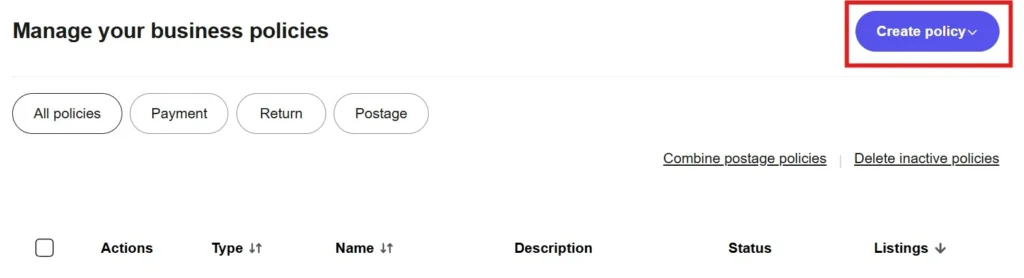
Create a policy

Begin by giving your policy a clear, descriptive name so it’s easy to identify among others. Then, add a short description (up to 250 characters) summarizing what the policy covers.
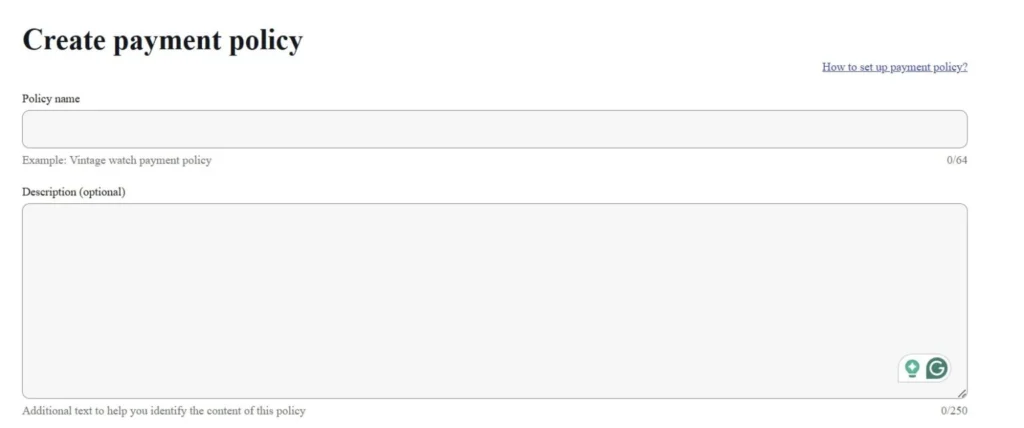
adding ebay payment policy name and description

Since eBay now uses eBay Managed Payments as the primary and preferred system, make sure to select it as your default payment method. This ensures you’re fully aligned with eBay’s guidelines and avoid any risks of non-compliance, penalties, or account suspension.

Next, set your payment terms. Payment options define how buyers can pay, but the payment terms determine when they must complete the transaction. If you’re selling using Buy It Now listings, it’s highly recommended to enable Require immediate payment when buyer uses Buy It Now. Checking this box speeds up transactions and guarantees you get paid instantly once someone purchases your product.
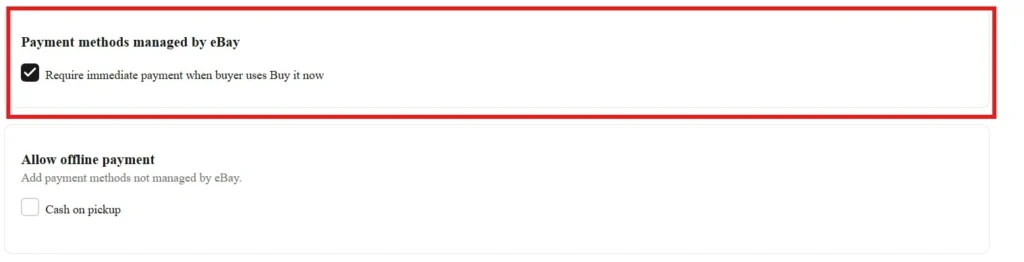
Payment managed by eBay

For auction-style listings, you will need to specify a reasonable payment timeframe after the auction ends, since immediate payment doesn’t apply.

Setting clear terms is especially important for dropshippers, who must pay their suppliers before the order is shipped. You must ensure the customer pays you first—whether your source is a US supplier or a Chinese supplier. This prevents situations where buyers attempt to check out with credit cards that delay or fail to charge.

If needed, you may also allow offline payments, such as Cash on Pickup, by checking the appropriate option.

When everything is set, click Save. Remember, your payment policy isn’t fixed—you can update or modify it anytime as eBay’s rules evolve. Reviewing eBay’s guidelines periodically helps keep your policies compliant and ensures a smooth, trustworthy buying experience for your customers.

Setting up an eBay account is easy! Follow these steps to create your profile, start selling, and earn money.

How to Create a Shipping/Postage Policy

The steps you’ll need to take to set up Payment and Postage policies are nearly identical. Once you select the Postage policy option from the Create Policy drop-down menu, you’ll need to name your policy and optionally add a description. You can use a single shipping policy for all your listings or assign it only to specific items. Depending on the market the policy applies to, you can define the handling time, service providers, and other shipping options.
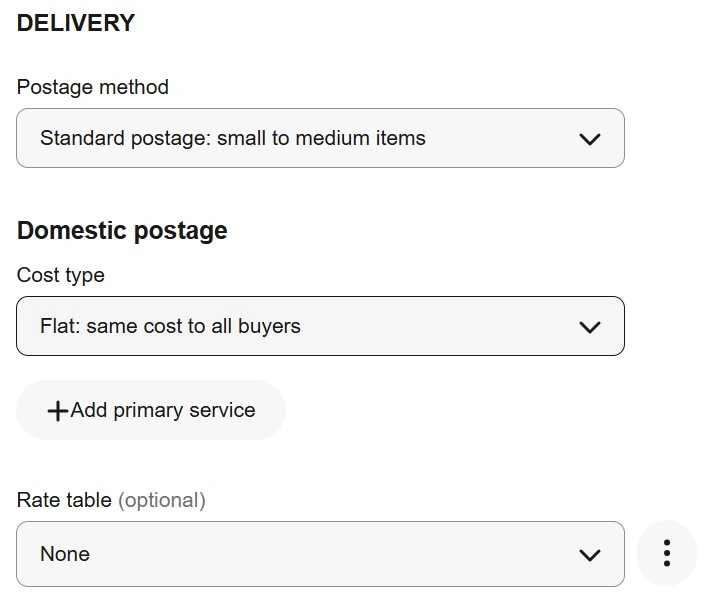
adding postage policy

US Shipping Service

Sellers operating exclusively on eBay’s US market can choose from the following shipping cost options:

  • Flat Rate – All buyers are charged the same amount for shipping, though the fee can vary depending on factors like the buyer’s location or item size.

  • Calculated – Shipping is calculated automatically based on the buyer’s location.

  • Freight – Shipping option for products heavier than 150 lbs.

  • No Shipping – For sellers who only offer local pickup.

Optionally, you can check the Free Shipping box if you want your business to cover all shipping costs. Most US sellers use UPS or FedEx, but you can also offer additional services such as UPS Next Day Air Saver or USPS Priority Mail.

The handling time drop-down menu allows you to choose from various options, ranging from the same business day to thirty business days. While eBay recommends one business day, it’s essential to select a realistic handling time to avoid shipping delays.

International Shipping Service

The International Shipping Program, formerly called the Global Shipping Program (available only to select US sellers), allows eligible sellers to entrust eBay with international deliveries. Sellers are only responsible for sending their items to the nearest shipping hub.

If you participate in this program, you can indicate it in your international shipping policy. Alternatively, you can use third-party logistics solutions to provide international shipping for products sold in different eBay markets worldwide.

In the Alternative International Postage Options section, you can select either Flat or Calculated shipping costs. You can also specify the regions where you offer shipping services and include any additional handling costs in your policy.

Additionally, you can provide custom shipping prices based on individual locations and sellers can create an exclusion list of countries where they do not provide shipping services and include this in their shipping policies.

Learn how to start a profitable reselling business on eBay in 2025 and discover top trending products to flip for profit.

How to Create a Return Policy

To create a Returns business policy, start by selecting the Returns option from the Create Policy drop-down menu. Then give your policy a name and add a description.
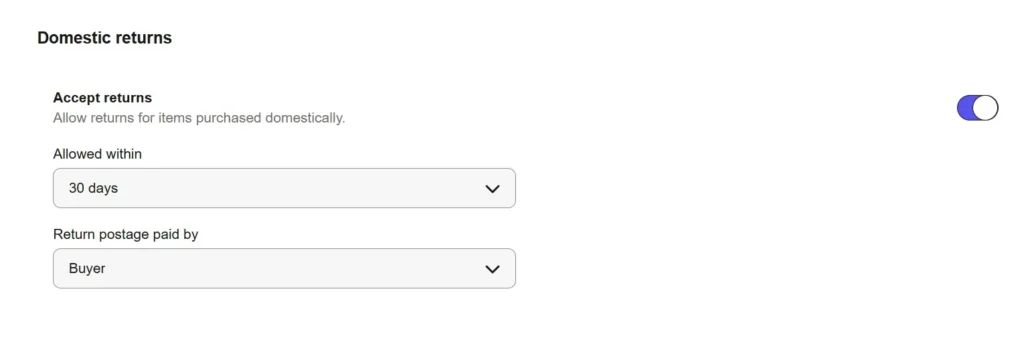
adding Return policy for international and Domestic

Next, decide whether your store will accept returns. If you prefer not to accept them, simply uncheck the boxes for Domestic Returns Accepted and International Returns Accepted.

If you do accept returns, you need to set the timeframe buyers have to return items. eBay recommends a 30-day return window, as this helps listings qualify for Top Rated Seller benefits and can improve their visibility in search results. You also have the option to offer 14-day or 60-day return periods.

Finally, indicate who will cover the return shipping costs — you can either offer free returns or have the buyer pay for return shipping. The setup for domestic and international returns works the same way, so make sure to define both the return period and shipping responsibility for international buyers as well.

Vehicle Payment and Delivery Policies

These policies are more straightforward. After naming and describing the policy, you only need to specify whether offline payments are accepted for certain listings and whether the buyer is responsible for vehicle pickup or delivery.

You can also include additional delivery details directly in the listing or within the policy description if you plan to handle the delivery process yourself.


Discover the top eBay product research tools for 2025 to identify trending and best-selling items effectively.

Managing and Updating eBay Business Policies

Once you’ve created your eBay business policies, managing and updating them correctly is critical to keeping your store competitive and compliant in 2025. Updated policies help you respond to changes in shipping carriers, payment options, return expectations, and buyer behavior — all of which directly impact sales and customer satisfaction.

Below is a comprehensive guide to managing and updating your business policies settings effectively.

Why Regular Management Matters

Your ebay business policies aren’t “set and forget.” eBay updates features regularly, and industry standards evolve year after year. Active policy management helps you:

  • Maintain relevant shipping options as carriers change rates and services

  • Align return policies with buyer expectations and eBay standards

  • Ensure your payment rules reflect the latest managed payments requirements

  • Avoid errors during listing or revisions due to outdated settings

Managing policies effectively also saves time because updates propagate to all listings that use that policy.

Where to Manage Your Policies

To manage or update your eBay business policies, you’ll work from the Business Policies dashboard in your eBay Seller Hub:

  1. Go to Seller Hub → Account Settings

  2. Click Business Policies in the sidebar

  3. You’ll see your policies grouped by type (Payment, Shipping, Return)

From here you can edit, copy, reassign, delete, or set defaults for your policies.

Editing Existing Policies

Updating your policies keeps your listings accurate and compliant. When a policy is edited:

  • All listings that use that policy are automatically updated with the new details

  • This reduces manual relisting or bulk editing work

  • It ensures consistency across your store

How to edit:

  1. Find the policy you want to update

  2. Click Edit

  3. Make changes (e.g., shipping methods, handling time, return window)

  4. Save your changes

  5. Confirm that eBay applied updates to active and scheduled listings

Important Notes:

  • Sometimes listings that can’t be edited (e.g., those with bids or scheduled ending) won’t update immediately. eBay may ask you to save the edited policy under a new name and confirm the update.

  • After updating, always check how frequently used policies appear in your default selections for new listings.

Reassigning Policies to Listings

If you want a new or updated policy to replace a previous one across many listings:

  1. Create or edit your preferred policy

  2. Use eBay’s bulk editing tools in Seller Hub or a third-party listing tool

  3. Reassign the updated policy to listings that currently use something outdated

Reassigning can be especially useful when you need consistent shipping or return rules across multiple categories or product lines.

Deleting Old or Unused Policies

Keeping old policies can make your ebay business policy setup cluttered and confusing. But be careful:

  • eBay won’t let you delete a policy that’s still assigned to an active or scheduled listing

  • Before deleting, reassign all listings using that policy to a new one

  • Once reassigned, eBay allows deletion of the old policy

This keeps your policy list clean and easier to manage over time.

Setting Default Policies

Choosing default policies helps speed up listing creation:

  • Default payment policy

  • Default shipping policy

  • Default return policy

Once set, these defaults pre-populate when you start a new listing, saving clicks and preventing mistakes. You can always change them per listing if needed.

Common Management Scenarios and Tips

Updating Shipping Options Mid-Season

If carriers change delivery times or rates (e.g., during holidays), update your shipping policy to reflect current handling times and available services. This avoids cancellations or disappointed buyers.

Changing Return Preferences

If a previous return window was hurting profits (e.g., too long), adjust the policy and monitor results. Some sellers increase conversion by offering a 30-day return but tighten who pays for return shipping.

Adding New Payment Methods

As eBay evolves its managed payments and integrates new methods, ensure your payment policies list all accepted options so buyers can check out smoothly.

Policy Sync With Third-Party Tools

If you use listing tools or inventory management software, remember:

  • Some tools pull your ebay business policies directly via sync

  • If a policy changes, you may need to refresh or re-sync it in your tool

  • Policies might need to be re-selected in dropdowns within the external platform

This ensures what you see externally matches what’s active in eBay.

Discover the most profitable items to sell on eBay in 2025 and boost your online business earnings.

Best Practices for eBay Business Policies

Business Policies not only protect your business but also provide security and confidence to buyers. However, if implemented incorrectly, they can negatively affect sales.

Consistency is Key

Repeat customers can boost sales by up to 40%. To encourage this, provide consistent order processing so buyers always know what to expect.

If your shipping, handling times, or return policies vary across listings, buyers may feel uncertain or mistrustful. But when policies are consistent—same shipping times, same return options—buyers feel safe and confident.

Be Clear and Specific

Policy details should be easy to read and visible, just like your listing description. 

  • Ensure your return policies are straightforward and simple to understand.

  • Simplifying shipping policies can make purchasing psychologically easier, as buyers have fewer choices to process. For example, Shipping Rate Tables allow you to show a clear, location-based shipping cost for each item.

Consider Your Target Audience

Your niche determines the type of buyers you attract. Tailor your policies to match their expectations:

  • Gifts: Generous return policies appeal to buyers purchasing for loved ones.

  • Budget Items: Free shipping can encourage cost-conscious buyers to make a purchase.

Understanding your audience ensures you provide not just the product they want, but also the customer service experience they expect.

Research Competitors’ Policies

Look at how your most successful competitors structure their business policies. Aim to match or exceed their offerings. For instance, if competitors offer free shipping, charging for it could make your listings less competitive.

Following successful competitors’ strategies can help your business capture more market share and attract loyal customers.

Explore 200+ ready-to-use eBay feedback examples to build trust, boost ratings, and impress buyers or sellers instantly.

Final Thoughts: eBay Business Policies

Setting up and managing your eBay Business Policies correctly is one of the most powerful ways to improve your selling performance in 2025. Clear, consistent policies not only make listing faster and easier but also build buyer trust, increase conversions, and help your store stay competitive in eBay search results. Whether you’re optimizing shipping speeds, refining return rules, or ensuring your payment methods are up to date, strong business policies create a smoother, more professional buying experience.

By regularly reviewing and updating your policy templates, you ensure your store stays aligned with eBay’s latest standards and buyer expectations. This guide has walked you through how to set up, manage, and optimize your ebay business policies, and now you have everything you need to structure your account for long-term success.

Learn how to view sold items on eBay in 2025 to analyze trends and price your listings effectively

FAQs – eBay Business Policies

How do I remove a business policy from eBay?

If you want to remove Business Policies from your eBay store, go to the Business Policies page under your Account section and select the opt-out link.

Opting out will not affect your active listings, but if you want to edit the payment, shipping, or returns policies for individual listings, you’ll need to update them manually.

You can opt back in to Business Policies at any time through the same Business Policies page.

Your eBay Business Policies are located inside Seller Hub.

To access them:

  1. Log in to eBay using a desktop browser

  2. Go to Seller Hub

  3. Click Account Settings (top right)

  4. Select Business Policies in the left menu

If you don’t see the option, you may need to “opt in” to business policies first, which eBay usually offers automatically when sellers access the page.

Policy violations occur when a seller breaks one of eBay’s rules. These rules protect buyers and ensure listings meet eBay’s standards.

Common types of violations include:

  • Selling restricted or prohibited items

  • Using misleading titles, images, or descriptions

  • Manipulating shipping costs or handling times

  • Violating intellectual property rights (VeRO)

  • Not honoring return policies or delivery promises

When a violation occurs, eBay may:

  • remove the listing

  • limit account privileges

  • issue warnings

  • place selling restrictions

Maintaining accurate ebay business policy settings helps avoid several types of violations, especially related to returns, payments, and shipping.

Contact Us for Tailored Solutions – Stores Automation:

Ready to transform your Ebay store and achieve big wins? Contact us at Stores Automation for personalized solutions that leverage the power of automation for your business. Reach out to us at 302-204-8244 or via email at info@storesautomation.com. For more information, Sign up for Ebay Store Automation. Embark on the path to e-commerce success with Stores Automation – where small changes lead to big wins!