


💡 Key Takeaways
- eBay Seller Hub is the central command dashboard for every eBay seller — replacing the older My eBay interface with a far more powerful and data-rich toolset.
- It gives you real-time visibility into your listings, orders, traffic, sales performance, and buyer feedback all in one place.
- The Performance tab surfaces the metrics that directly determine your seller level, Top Rated Seller status, and search ranking.
- Seller Hub's Marketing tools — including Promoted Listings and Markdown Manager — are your primary levers for driving visibility and conversion.
- Terapeak Product Research, built into Seller Hub, gives you 12 months of sold-item data to validate product decisions with real market evidence.
- The Research tab and Growth tools together make Seller Hub far more than an admin interface — it is a genuine business intelligence platform.
- Understanding every section of Seller Hub is one of the fastest ways to identify the gaps that are limiting your eBay store's growth right now.
📚 Table of Contents
- What Is eBay Seller Hub?
- How to Access My eBay Seller Hub
- The Overview Tab: Your Daily Dashboard
- The Listings Tab: Managing Your Entire Catalogue
- The Orders Tab: End-to-End Order Management
- The Marketing Tab: Promoting Your Listings
- The Performance Tab: Your Seller Health Dashboard
- The Research Tab: Terapeak and Market Intelligence
- The Growth Tab: Scaling Your eBay Business
- The Reports Tab: Data You Can Actually Use
- Pro Tips for Getting More from Seller Hub
- Frequently Asked Questions
If you run an eBay store and have not yet taken full advantage of eBay Seller Hub, you are almost certainly leaving growth on the table. Seller Hub is eBay's centralised management dashboard — the single place where you control your listings, track your orders, monitor your performance metrics, run advertising campaigns, and dig into market research. It replaced the older My eBay Selling interface and brought with it a depth of data and business tooling that most casual sellers never fully explore.
Understanding Seller Hub is not optional if you are serious about growing your eBay store. eBay had over 132 million active buyers globally in 2024, and the sellers who capture the largest share of that audience are the ones who understand how to read their data, respond to performance signals, and use every tool available to them. Seller Hub gives you all of that — if you know where to look.
This guide covers every section of my eBay Seller Hub in practical, actionable detail. Whether you have been selling on eBay for a week or a decade, this is the complete reference you need to understand what every tab does, which metrics matter most, and how to use the platform's built-in tools to grow your sales, protect your seller status, and operate more efficiently.
What Is eBay Seller Hub?
eBay Seller Hub is the unified management interface that eBay introduced to give sellers a single, professional-grade workspace for running every aspect of their eBay business. Before Seller Hub, sellers managed their activity through My eBay's Selling section — a functional but limited view that showed active listings and recent orders without much depth. Seller Hub replaced that experience entirely, pulling together listing management, order processing, marketing, performance tracking, and research tools into one cohesive dashboard.
Seller Hub is free for all eBay sellers — you do not need a store subscription to access it. However, sellers with eBay Store subscriptions unlock additional features within Seller Hub, including advanced reporting, more detailed traffic analytics, and extended access to promotional tools. The core functionality is available to everyone.
Here is a quick overview of the seven main sections within eBay Seller Hub:
Your daily snapshot — recent sales, active listings, tasks requiring attention, and key performance indicators at a glance.
Your complete catalogue management centre — create, edit, end, relist, and bulk-manage all your active, scheduled, and sold listings.
End-to-end order management — view new orders, print shipping labels, handle cancellations, manage returns and refunds.
Your promotional toolkit — Promoted Listings, Markdown Manager, Volume Pricing, and Coded Coupons.
Your seller health dashboard — metrics, defect rates, feedback score, Top Rated status, and traffic analytics.
Market intelligence powered by Terapeak — 12 months of sold-item data, average pricing, sell-through rates, and competitor insights.
Personalised recommendations, listing quality scores, and specific actions eBay identifies to grow your store's visibility and sales.
How to Access My eBay Seller Hub
Accessing Seller Hub is straightforward. Go to ebay.com/sh/ovw while logged into your eBay account, or click My eBay in the top navigation and then select Selling from the dropdown. You can also reach Seller Hub directly from the eBay homepage by clicking the Seller Hub link in the footer.
If this is the first time you are accessing Seller Hub, eBay will walk you through a brief onboarding flow that lets you customise which modules appear on your Overview dashboard. Take a few minutes to configure this properly — the Overview tab is the screen you will open every working day, so making sure it surfaces the data most relevant to your business saves meaningful time over the long run.
💡 Mobile access: Seller Hub is accessible on mobile browsers and the eBay app, but the full feature set — particularly the Research and Marketing tools — works best on a desktop browser. If you manage your store from a phone, you will find that certain bulk actions and detailed analytics require a desktop session to complete efficiently.
The Overview Tab: Your Daily Dashboard
The Overview tab is the first screen you see when you open Seller Hub, and it is designed to give you an immediate read on your store's health without having to dig into individual sections. Think of it as your morning briefing — a quick scan tells you whether everything is running smoothly or whether something needs your immediate attention.
What the Overview Tab Shows You
Tasks
The top of the Overview tab displays a task list — a prioritised list of actions that require your attention. This includes items like unshipped orders past their handling time, open buyer messages, cases awaiting your response, listings that have ended and need relisting, and payment issues. Always clear your task list before moving on to anything else. Unresolved tasks — particularly open cases or late shipments — directly damage your seller metrics and can affect your search ranking.
Sales Summary
The Sales Summary module shows your revenue, units sold, and average sale price over a selectable time period (today, last 7 days, last 31 days, and last 365 days). This is your primary revenue dashboard — use it to spot trends quickly. A dip in daily revenue over several consecutive days usually signals either a listing suppression issue, a search ranking drop, or a seasonal demand shift. Catching these early means you can investigate and act before they significantly impact your monthly totals.
Active Listings Overview
The Overview tab displays a summary of your listing counts — how many listings are active, how many have sold in the last period, how many have received impressions, and how many have watchers. The impressions-to-views ratio is particularly useful here: if your listings are generating impressions but low click-through rates, your titles or main images are not compelling enough to earn the click. If views are high but conversions are low, your pricing, description, or item condition needs attention.
Recent Feedback
Your most recent buyer feedback appears on the Overview dashboard. Monitor this section daily. A negative feedback left overnight needs a prompt, professional response — and if it is unjust, understanding the eBay feedback removal process may help you address it through the right channels. Your feedback score directly affects buyer trust and search ranking, so treating every piece of feedback as meaningful — positive or negative — is part of running a professional eBay store.
Seller Level
Your current seller level (Below Standard, Above Standard, or Top Rated) is prominently displayed on the Overview tab. This is one of the most important numbers on the page because your seller level directly affects your search visibility, your access to Top Rated discounts on final value fees, and buyer confidence. If your seller level has dropped, the Performance tab will show you exactly which metrics caused the decline and what you need to do to recover it.
The Listings Tab: Managing Your Entire Catalogue
The Listings tab is your catalogue management centre. Every listing you have ever created on eBay — active, scheduled, unsold, sold, or ended — is accessible from here. For sellers managing dozens or hundreds of listings simultaneously, understanding the Listings tab's capabilities is essential to operating efficiently.
Listing States and What They Mean
The Listings tab organises your inventory into distinct states. Active listings are currently live and visible to buyers. Scheduled listings are set to go live at a future date or time. Unsold listings have ended without a sale and are available to relist. Sold listings show recently completed transactions. Drafts are saved but unpublished listing attempts. Understanding which bucket your inventory sits in at any given time helps you spot problems — unsold listings accumulating without analysis, for example, is a signal that pricing or listing quality needs attention.
Bulk Edit and Bulk Actions
One of the most powerful features in the Listings tab is bulk editing. You can select multiple listings simultaneously and apply changes across all of them at once — price updates, shipping changes, category changes, and listing duration adjustments. This is genuinely transformational for sellers managing large catalogues. Manually editing 200 listings one by one takes hours; bulk editing takes minutes.
To use bulk edit, check the boxes next to the listings you want to modify, click the Edit dropdown at the top, and select the field you want to change. You can update prices by a fixed amount or a percentage, which is particularly useful for applying seasonal markdowns or adjusting margins when supplier costs change. Knowing how to manage your eBay business policies — payment, shipping, and return policies that can be applied across listings in bulk — makes the Listings tab even more powerful, since policy changes cascade across all listings that use them.
Listing Quality Recommendations
Next to many active listings, Seller Hub displays quality indicators — flags that signal missing item specifics, suboptimal titles, low-quality images, or incomplete descriptions. These are not cosmetic suggestions. eBay's Cassini search algorithm uses listing completeness and quality as ranking signals. A listing with all item specifics filled in, a keyword-rich title, and multiple high-resolution images consistently outranks an incomplete listing even if the price is higher. Understanding eBay SEO and applying those principles to every listing you create is one of the most impactful long-term investments you can make in your store's visibility.
The Orders Tab: End-to-End Order Management
The Orders tab handles everything that happens after a buyer clicks purchase. It is where you process shipments, print labels, manage returns, and handle any order issues that arise. Getting efficient with the Orders tab directly impacts your defect rate, your late shipment rate, and your buyer satisfaction scores — all of which feed directly into your seller level.
Awaiting Shipment
New orders land in the Awaiting Shipment queue. This is your most time-sensitive section — eBay's handling time commitments are displayed for each order, and shipping outside that window triggers a late shipment defect. Sort this view by handling time deadline and work through it first every day. eBay's integrated shipping tools within Seller Hub let you print labels directly for all major carriers — USPS, UPS, FedEx, and others — without leaving the platform, and eBay-negotiated rates are consistently cheaper than walk-in carrier prices. Understanding your obligations around how long eBay sellers have to ship is essential knowledge for keeping your defect rate clean.
Returns and Refunds
The Orders tab includes a dedicated Returns Management section where you can view open return requests, respond to cases, issue refunds, and generate return shipping labels. How you handle returns has a direct impact on your seller metrics and your store's reputation with buyers. A return handled promptly and professionally — even when the buyer's reason is questionable — consistently produces better outcomes than a disputed return that escalates to an eBay case. If you receive unjustified return requests or buyers leave retaliatory feedback, reviewing eBay's feedback removal options gives you a pathway to address those situations.
Cancellations
Cancelled orders appear in a dedicated section within the Orders tab. Order cancellations count against your seller metrics when they are seller-initiated (out-of-stock items, pricing errors). Buyer-initiated cancellations do not count against you. Keep your cancellation rate below 2% — the threshold eBay monitors closely. If you are dropshipping, having robust eBay dropshipping software that monitors supplier stock levels in real time and automatically ends listings when items go out of stock is the most effective way to prevent cancellations before they happen.
The Marketing Tab: Promoting Your Listings
The Marketing tab is one of the most underutilised sections of Seller Hub for new sellers — and one of the most powerful for experienced ones. It contains four primary tools: Promoted Listings, Markdown Manager, Volume Pricing, and Coded Coupons. Used correctly, these tools give you significant control over your store's visibility and conversion rate.
Promoted Listings
Promoted Listings is eBay's primary advertising tool. When you enrol a listing in Promoted Listings, you pay an ad rate (a percentage of the final sale price) only when a buyer clicks your promoted listing and purchases within 30 days. There is no cost for impressions or clicks that do not convert — you pay only on completed sales. eBay reports that Promoted Listings can increase a listing's visibility by up to 36% compared to non-promoted listings in search results.
Promoted Listings come in three formats. Standard uses a cost-per-sale model where you set an ad rate. Advanced (available to Top Rated and above-standard sellers) uses cost-per-click bidding on specific keywords, giving you more targeting control. Express automatically promotes eligible single-quantity buy-it-now listings. For most sellers, Standard is the most practical starting point — set an ad rate 1–2% above the suggested rate for your category to maximise impression share without overpaying.
Markdown Manager
Markdown Manager lets you create sale events — applying temporary price reductions to selected listings or entire categories within your store. When you use Markdown Manager, eBay displays a strikethrough of the original price alongside the sale price, which is a powerful visual buying trigger. Sale events run for a minimum of 24 hours and a maximum of 14 days. Use them strategically around high-demand periods (holidays, seasonal events) or to clear slow-moving inventory without permanently reducing your listing price.
Volume Pricing
Volume Pricing (also called Quantity Discounts) lets you incentivise buyers to purchase multiple units by automatically applying tiered discounts. You set the discount thresholds — for example, 5% off when buying 2, 10% off when buying 3. Volume Pricing displays within your listing automatically and can meaningfully increase average order value for categories where buyers naturally purchase in multiples (consumables, components, accessories). It is one of the simplest tools in Seller Hub to set up and one of the highest-ROI for eligible product types.
Coded Coupons
Coded Coupons (available to eBay Store subscribers) let you create discount codes that buyers enter at checkout. You can share these codes through email marketing, social media, or direct buyer outreach. They are particularly effective for re-engaging past buyers — sending a 10% coupon to buyers who purchased in the last 90 days is a reliable way to drive repeat purchases without running a public sale that all buyers see.
The Performance Tab: Your Seller Health Dashboard
If there is one tab in Seller Hub that every seller should visit weekly without exception, it is the Performance tab. This is where eBay shows you the metrics that determine your seller level, your search ranking, and your eligibility for Top Rated Seller status and the discounts that come with it.
Seller Level and What Determines It
eBay evaluates seller performance against three core metrics on a monthly basis. Your performance on these metrics determines whether you sit at Below Standard, Above Standard, or Top Rated seller level.
| Metric | Top Rated Requirement | Above Standard Requirement | Consequence of Breach |
|---|---|---|---|
| Transaction Defect Rate | Below 0.5% | Below 2% | Search ranking suppression; eventual account restriction |
| Cases Closed Without Resolution | Below 0.3% | Below 0.3% | Below Standard classification; severe search suppression |
| Late Shipment Rate | Below 3% | Below 5% | Metrics flag; potential seller level downgrade |
| Tracking Upload Rate | Above 95% | Above 90% | Metrics flag; affects buyer experience score |
Top Rated Sellers earn a 10% discount on final value fees for qualifying listings — a meaningful cost saving at any significant volume. They also receive the Top Rated Plus badge displayed on their listings, which improves buyer trust and conversion rate measurably. Reaching and maintaining Top Rated status should be an explicit goal for every serious eBay seller. Our complete guide on how to become an eBay Top Rated Seller covers every requirement and the fastest path to qualifying.
Traffic Reports
The Performance tab's Traffic section shows you impressions, page views, and conversion rates at both the store level and the individual listing level over selectable time periods. This data is fundamental to understanding what is and is not working in your catalogue. A listing with high impressions but low click-through rate needs a better main image or a more compelling title. A listing with good click-through but poor conversion needs price, description, or image improvement. The Performance tab gives you the diagnostic data; your response determines the outcome. You can see exactly which items have sold and cross-reference against traffic data to identify your best-converting listings — and replicate what makes them work across your broader catalogue.
Feedback Score
Your overall feedback percentage and recent feedback comments appear in the Performance tab. eBay calculates your feedback score based on positive, neutral, and negative ratings from buyers. Your positive feedback percentage — the number you see displayed publicly on all your listings — directly affects buyer purchasing decisions. Buyers regularly filter search results by seller feedback score, and studies consistently show that sellers with 98%+ positive feedback convert at significantly higher rates than those below 95%. Proactively requesting feedback from satisfied buyers and responding professionally to every negative comment are the two most impactful habits for improving and maintaining your score. For inspiration on what genuine seller feedback looks like and how to encourage positive responses, our guide on eBay feedback examples provides templates and approaches you can adapt.
The Research Tab: Terapeak and Market Intelligence
The Research tab is where Seller Hub transitions from an operational tool to a genuine business intelligence platform. It houses Terapeak Product Research and Terapeak Sourcing Insights — eBay's proprietary market research tools that give you access to 12 months of historical sales data across the entire eBay marketplace.
What Is Terapeak?
Terapeak was an independent eBay research platform that eBay acquired and integrated directly into Seller Hub in 2019. It pulls data from eBay's actual transaction history — real sold listings, not estimates or extrapolations. For any product or keyword you search, Terapeak shows you the average sale price, the total number of units sold, the sell-through rate (what percentage of listed items actually sold), the top sellers in that category, and which listing formats and shipping options performed best. This is the kind of data that previously required expensive third-party subscriptions — and it is now built into Seller Hub at no additional cost for eBay Store subscribers and available in limited form to all sellers.
📊 Terapeak access: Basic Terapeak Product Research is available to all eBay sellers with an active selling account. Terapeak Sourcing Insights — which provides category-level demand data and sell-through rates — requires a Basic eBay Store subscription or higher. If you are a serious seller without a Store subscription, Sourcing Insights alone often justifies the monthly cost.
How to Use Terapeak Effectively
Validating Product Decisions
Before adding any new product to your eBay catalogue, search it in Terapeak. Look at the sell-through rate — the percentage of listed items that actually sold within the time period. A sell-through rate above 50% indicates strong demand relative to supply. Below 30% suggests oversupply or weak demand. Look at the average sale price to understand the realistic revenue per unit, and check the top sellers to understand who you are competing against and what their listing approach looks like.
Identifying Pricing Opportunities
Terapeak shows you the distribution of sold prices for any product — not just the average. If most sales are clustering at a price point significantly higher than what you planned to charge, you have an opportunity to price upward without sacrificing sell-through. Conversely, if recent sales data shows prices declining, you can adjust your pricing strategy before your existing inventory sits unsold at an uncompetitive price point.
Finding Best-Performing Listing Formats
Terapeak separates data by listing format — auction versus Buy It Now — and by condition (new versus used). For categories where auctions still dominate, listing as Buy It Now could mean your items get less visibility. For categories where Buy It Now with free shipping dominates, running auctions is likely suboptimal. Let the data tell you what format the market prefers rather than defaulting to what you have always done. Our guide on best eBay product research tools covers Terapeak alongside other external tools that complement it.
It is worth noting that Terapeak works exceptionally well in conjunction with eBay's own Terapeak insights features, which surface trending search terms and category demand shifts that pure historical data does not always reveal.
The Growth Tab: Scaling Your eBay Business
The Growth tab is Seller Hub's personalised recommendations engine. eBay analyses your store's specific data — your current listings, their quality scores, your performance metrics, your promotion activity, and your category mix — and surfaces specific, prioritised recommendations for improvement.
Listing Quality Scores
The Growth tab assigns every listing a quality score based on completeness, item specifics, image quality, and description depth. Listings with poor quality scores receive specific recommendations — add these item specifics, improve this title, add more images — that you can act on directly. Improving listing quality scores is directly correlated with improved search ranking in eBay's Cassini algorithm, which prioritises listing completeness and relevance as core ranking signals.
Sourcing Recommendations
For sellers with eBay Store subscriptions, the Growth tab surfaces category-level demand data showing which product categories have strong buyer demand relative to available supply on the platform. This is essentially eBay telling you where the gaps in the marketplace are — where buyers are searching but not finding what they want. For sellers looking to expand their catalogue or explore new niches, these recommendations represent real market intelligence grounded in eBay's own transaction data. If you are exploring what products to add, our guide on the best things to sell on eBay provides a category-by-category breakdown that complements the Growth tab's recommendations.
Store Subscription Recommendations
If eBay's data suggests that a Store subscription would reduce your costs or unlock growth features relevant to your current volume, the Growth tab will surface that recommendation with a cost-benefit analysis. This is worth reviewing if you are on the fence about upgrading — the analysis eBay provides is based on your actual transaction data, so it gives you a realistic picture of what the upgrade would mean for your specific business rather than a generic marketing pitch.
The Reports Tab: Data You Can Actually Use
The Reports tab lets you download detailed transaction and performance data in spreadsheet format — making it essential for sellers who want to analyse their business beyond what Seller Hub's built-in visualisations show. You can generate reports for transactions, order details, invoices, returns, and account activity over custom date ranges.
Transaction Reports
Transaction reports list every sale with full detail — item title, sale price, buyer location, final value fee charged, shipping cost, and net proceeds. Running these monthly and importing them into a spreadsheet gives you the raw material to calculate your actual margin per product, identify your highest-margin items, and spot categories where eBay fees are eroding profitability more than you expected. Many sellers are surprised to find that their highest-revenue products are not necessarily their highest-margin ones once fees are factored in.
Traffic Reports
Traffic reports export listing-level impressions, click-through data, and conversion metrics. Used alongside your transaction report, traffic reports let you calculate your conversion funnel — how many impressions translate to views, how many views translate to sales, and where the biggest drop-offs are in that funnel. This is the data serious eBay sellers use to make listing optimisation decisions rather than guessing at what is underperforming.
💡 Best practice: Download your transaction and traffic reports monthly and build a simple tracking spreadsheet. Track your total GMV, average order value, sell-through rate, and top 10 selling items month over month. Trends in these numbers tell you more about the direction of your business than any single week's performance snapshot. Consistent data discipline is one of the most underrated habits that separates growing eBay sellers from stagnant ones.
Pro Tips for Getting More from Seller Hub
1. Customise Your Overview Dashboard
The Overview tab is modular — you can add, remove, and rearrange the information panels displayed. Spend 10 minutes right now configuring it to surface the metrics most relevant to your business. If you are focused on growing sales, make sure your Traffic and Promoted Listings data is front and centre. If you are managing a large catalogue, your listing quality indicators and unsold items count deserve prime real estate.
2. Use Bulk Promotions, Not Individual Ones
Setting up Promoted Listings on a listing-by-listing basis is genuinely tedious when you have more than 20 active items. Use the bulk promotion feature in the Marketing tab to enrol all eligible listings in a Promoted Listings campaign simultaneously. Set a competitive ad rate for your category (check eBay's suggested rates as a baseline) and apply it across your active catalogue. You can always refine individual ad rates later once you have performance data.
3. Check Your Defect Rate Before Every Evaluation Period
eBay evaluates seller performance on the 20th of each month. In the week before your evaluation date, open the Performance tab and review your metrics specifically for the evaluation period. If you are close to a threshold on any metric, you still have time to improve your numbers before they are locked in for the period. Understanding the timing of eBay's evaluation cycle is a simple but high-value piece of knowledge many sellers overlook.
4. Leverage Terapeak Before Every Sourcing Decision
Before adding any new product to your catalogue — whether you are sourcing from a wholesaler, a dropshipping supplier, or a liquidation pallet — run it through Terapeak first. A five-minute search can tell you whether the product has real demand on eBay, what price point it actually sells at (as opposed to what it is listed at), and how crowded the competitive landscape is. This habit alone eliminates most bad sourcing decisions before they cost you money. If you are building a dropshipping operation, our guide on eBay dropshipping suppliers covers which supply sources work best with Seller Hub's fulfilment workflow.
5. Respond to Every Buyer Message Within 24 Hours
eBay tracks your response time to buyer messages and factors it into your performance metrics. Beyond the metric, prompt responses build buyer trust and directly reduce the likelihood of a message escalating to a case. Set up eBay's mobile notifications so you are alerted to new messages immediately, and keep a set of template responses for your most common buyer enquiries — estimated delivery times, return process, product compatibility questions — to enable fast, professional replies even when you are not at your desk.
6. Run Sale Events Around eBay's Promotional Calendar
eBay runs platform-wide promotional campaigns — Deals events, seasonal sales, and category-specific promotions — throughout the year. Sellers who align their Markdown Manager sale events with eBay's promotional calendar get additional platform-level exposure during those periods. Check eBay's Seller Centre regularly for upcoming promotional opportunities and plan your Markdown Manager events to coincide with them.
7. Use Business Policies Consistently
eBay's business policies system lets you create reusable payment, shipping, and return policy templates that you apply to listings rather than setting policies individually each time. This not only saves time but ensures consistency across your catalogue. When you need to update a policy — changing your return window or adding a new shipping service, for example — updating the policy template cascades that change across every listing that uses it simultaneously. Setting them up correctly from the start ensures consistency across your catalogue and maximises your competitiveness.
Frequently Asked Questions
Want to Skip the Hard Work? How Stores Automation Does It All for You
By now, you have a detailed understanding of how to use eBay Seller Hub to grow your store — the metrics to watch, the tools to use, and the habits that separate growing sellers from stagnant ones. For some readers, this guide provides everything needed to manage a store independently. For others — busy professionals, those with limited time or experience, or investors seeking managed income — committing to daily operations can be overwhelming.
That is exactly why Stores Automation exists. We are a professional, done-for-you eBay store automation service provider, where we take the heavy lifting off your shoulders. Our expert team builds and manages your eBay store from scratch, handling all aspects of operations while you earn profits without the day-to-day involvement.
What Stores Automation Handles
- Complete eBay seller account setup and configuration
- Data-driven product research using real-time market demand insights
- SEO-optimised listings crafted to rank in eBay search results
- Supplier sourcing and vetting — only eBay-compliant wholesale sources
- Daily order processing and fulfilment management
- Customer service, buyer message responses, and returns handling
- Continuous store optimisation, repricing, and performance monitoring
- Seller metrics management to maintain account health and Top Rated eligibility
⭐ Trusted by Our Clients
"I've been working with Stores Automation for almost a year now, and I'm extremely pleased with the results. Their team's strategy helped me achieve consistent sales growth."
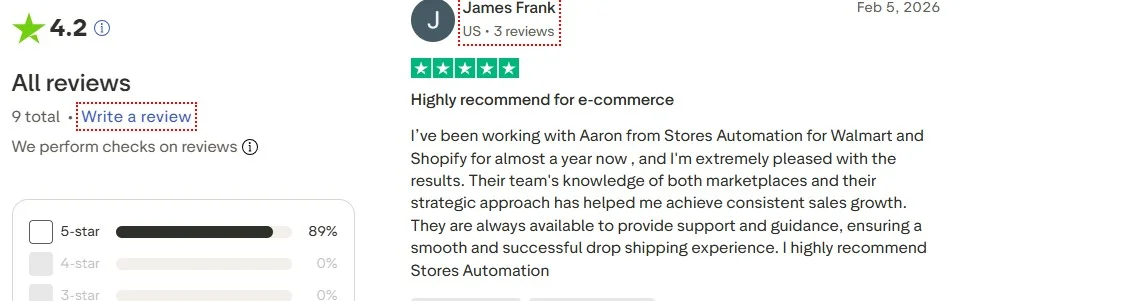 ⭐ See Our Reviews on Trustpilot
"Highly recommended agency with excellent support and strong results across multiple stores."
 ⭐ See Our Reviews on Reviews.io
"Great experience working with the team — smooth process, strong communication, and consistent performance."
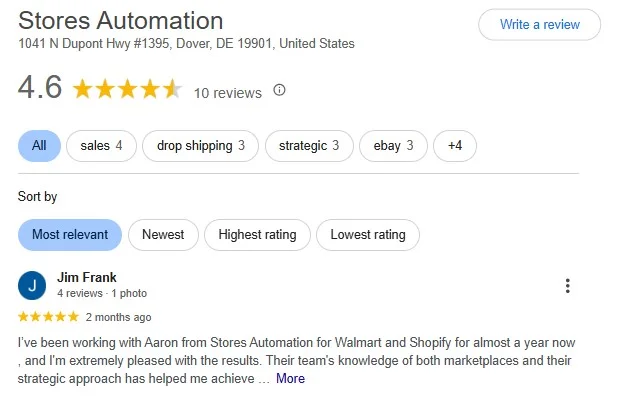 ⭐ See Our Google Reviews
Final Thoughts: Make Seller Hub Work for You
eBay Seller Hub is one of the most powerful free tools available to any e-commerce seller — and most sellers use only a fraction of its capabilities. The sellers who understand every tab, monitor their metrics consistently, use Terapeak before every sourcing decision, run Promoted Listings campaigns, and act on the Growth tab's recommendations are the ones who grow their stores year over year while others plateau.
The path to a high-performing eBay store runs directly through Seller Hub. Your performance data lives there. Your competitive intelligence lives there. Your promotional tools live there. The question is not whether to use it — it is how deeply and how consistently you engage with it. Start by building a weekly Seller Hub review habit: Overview for tasks and revenue, Performance for metrics, Growth for improvements, and Research for any upcoming sourcing decisions. Ten to fifteen minutes three times a week spent in Seller Hub pays dividends that compound over months and years.
And if managing all of this alongside the day-to-day operational demands of running a live eBay store feels like more than you want to tackle alone, our eBay automation services give you a professional team that handles the operational layer while you own the business and collect the returns.